Data recovery used to mean two things: waiting for a long scan, then digging through thousands of recovered files by hand. The first part has gotten faster with modern scanning engines. The second part – the digging – is what AI search and filters have transformed.
When you can search and filter what a scan found, recovery stops being a chore and becomes a quick, targeted process. Here is how AI search and filters speed up and simplify data recovery in practice.
The Recovery Bottleneck Nobody Talks About
Ask anyone who has recovered data and they will tell you the same thing: the scan finds the files, but finding the files you want is difficult. A 256GB drive can produce tens of thousands of recoverable items – old photos, system files, app caches, documents you forgot existed.
Sorting through that list is where recovery either succeeds or fails. Browse too slowly and you might give up. Browse too fast and you might recover the wrong files – or miss the right ones entirely.
How AI Search and Filters Remove the Bottleneck
1. Search by What You Remember
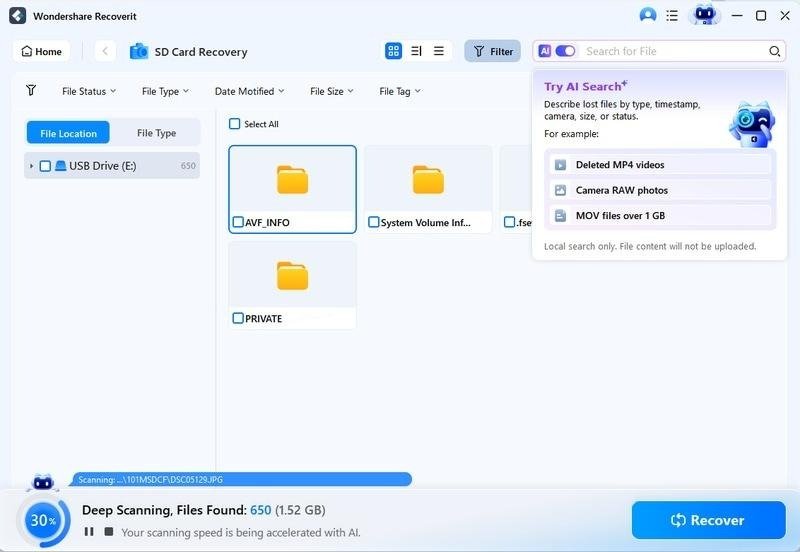
After a scan, the search box lets you type a filename, extension, or keyword, and the results narrow as you type. You do not need the exact name – a partial word or a file extension like “.mp4” is enough to surface what you need.
2. Filter Out the Noise
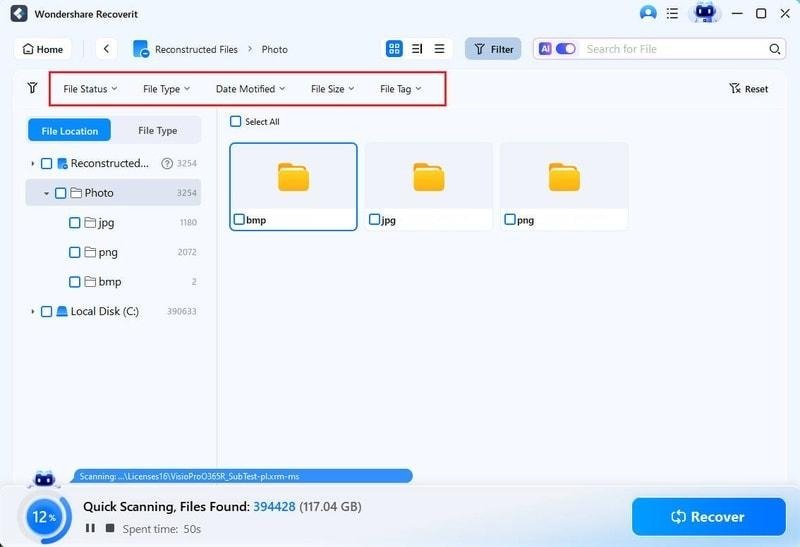
Filters strip away everything irrelevant in one action:
- File Type filter – show only photos, videos, documents, or audio.
- Time filter – restrict results to the date range around your loss.
- File Size filter – find large video files or small documents by size.
These three filters cover the most common recovery searches. If you lost photos last week, filter by photo type and last week’s dates. If you lost a video, filter by video type and size. Two clicks and the list collapses from thousands to dozens.
3. Preview and Recover with Confidence
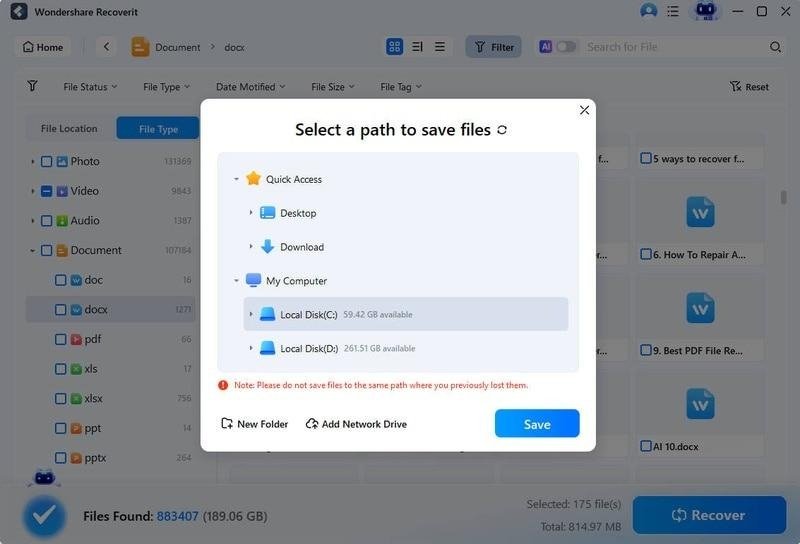
Once the filters narrow the list, preview the remaining files to confirm they are the right versions, then recover them to a safe drive. No more second-guessing whether you grabbed the correct file.
Real Examples of Faster Recovery
Scenario 1 – Lost vacation photos: After scanning an SD card, filter by photo type and the date range of the trip. The relevant images appear immediately, skipping years of older photos. The SD card recovery module applies the same search and filters to card scans.
Scenario 2 – Deleted work video: Filter by video type and size range to isolate the clip from among thousands of files. Preview it, recover it, done – the video recovery module pairs with the same filters to find footage fast.
Scenario 3 – Lost a specific document: Type part of the document name into the search box, add the document type filter, and the file surfaces within seconds.
The Anatomy of a Fast Recovery
A fast recovery is not magic – it is a sequence of narrowing steps. Each step removes a large chunk of noise cheaply:
- Type filter removes everything that is not the file kind you lost – often 70 percent of the list.
- Time filter removes everything outside the loss window – often another 20 percent.
- Size filter removes files too small or too large to be the target.
- Search finalizes the shortlist with any remembered name or keyword.
Four steps, seconds each, and a ten-thousand-file list becomes a handful. The filters do the heavy lifting before you ever look at a filename.
Why Speed Matters in Data Recovery
Speed in recovery is not just about convenience – it is about success. The faster you can find and recover the files you need, the sooner you can stop using the source device and prevent further overwrites. Every minute spent digging through results is a minute your files sit at risk. AI search and filters shorten that window dramatically.
Speed also reduces errors. When you can filter and preview precisely, you recover exactly what you need instead of bulk-recovering everything and sorting it out later.
Time Saved per Recovery
Consider what browsing alone costs. At roughly one second per file to scan a name, a 10,000-file result list is more than two and a half hours of browsing – before you even check contents. With filters, the same hunt takes minutes: type filter, time filter, size filter, search, preview. The time savings are not incremental; they are the difference between an afternoon and an evening, or between a completed recovery and an abandoned one.
The AI Advantage Over Manual Browsing
Manual browsing asks you to scan names, dates, and sizes yourself – a slow, error-prone process. AI search and filters automate the sorting: the engine already knows each file’s type, size, and timing from the scan, so filtering is instant and accurate.
This matters even more as storage grows. A 1TB drive produces more recoverable files than anyone can browse by hand. AI search scales with the data; manual browsing does not.
Conclusion
AI search and filters make data recovery faster by attacking the real bottleneck: finding the right files in an overwhelming result list. Search by what you remember, filter by type, time, and size, preview, and recover. Wondershare Recoverit builds this smart layer into every scan, so whether you are recovering from a hard drive, an SD card, or a memory card, the AI search and filter experience is the same: fast, precise, and easy. Recovery used to end with a long, frustrating dig. Now it ends with a quick search.