Permanently deleted” sounds final – but in data recovery, it rarely is. Whether you emptied the Recycle Bin on Windows, emptied the Trash on a Mac, or used Shift+Delete to skip the bin entirely, the photos themselves are usually still on your drive. Deleting a file removes the reference to it; the actual data lingers until something new overwrites it.
This guide covers how to recover permanently deleted photos on both Windows and Mac, with the tools and steps that actually work.
What “Permanently Deleted” Actually Means
When you delete a photo, the operating system removes its entry from the file system index. The space it occupied is marked as available, but the photo’s data stays put. On Windows, emptying the Recycle Bin or using Shift+Delete does exactly this. On Mac, emptying the Trash does the same.
The catch is the same everywhere: new writes can overwrite that space. The sooner you stop using the drive and scan it, the better your chances. Photos deleted days ago are usually still recoverable; photos deleted months ago on a heavily used drive are a gamble.
How to Recover Permanently Deleted Photos on Windows
Step 1 – Check the Recycle Bin First
If you have not emptied the Recycle Bin, your photos may simply be sitting there. Open the Recycle Bin, locate the photos, right-click, and choose Restore. This brings them back to their original location.
If the bin is empty – or you used Shift+Delete – move to Step 2.
Step 2 – Scan the Drive with Recovery Software
For photos emptied from the Recycle Bin, you need software that scans the drive’s raw data. Wondershare Recoverit is a photo recovery tool that digs out permanently deleted photos on Windows.
1. Launch Recoverit and select the drive where the photos were stored.
2. Click Scan. The tool runs a deep, AI-accelerated scan that looks for file signatures and rebuilds deleted photo data even when the file system no longer lists it.
3. Preview the photos and click Recover, saving them to a different drive.
scanning a Windows drive for deleted photos
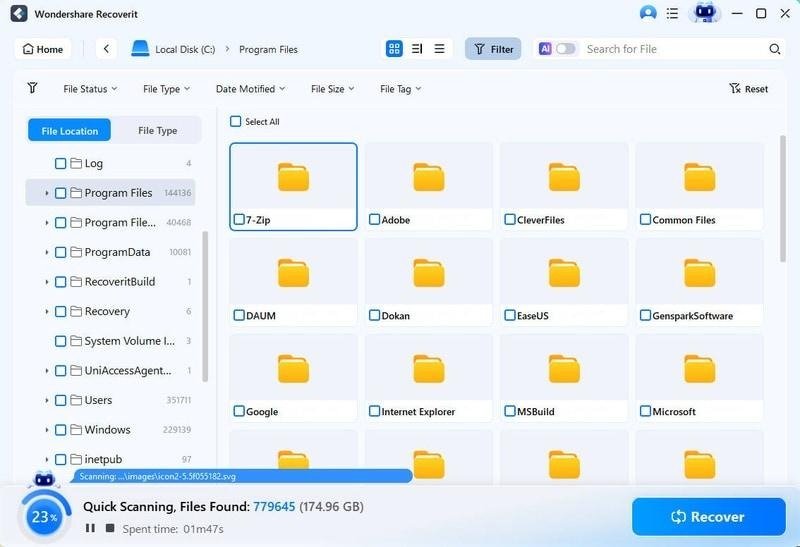

The Windows version of Recoverit is built for this exact workflow, with deep scan support for emptied Recycle Bin recovery.
How to Recover Permanently Deleted Photos on Mac
Macs add one extra layer: the Trash, plus the option to empty it “securely.” Photos emptied from the Trash are still recoverable with the right tool.
Step 1 – Check the Trash
Open the Trash from the Dock. If your photos are there, right-click and choose Put Back to restore them to their original folder.
If the Trash is empty, you need a scan.
Step 2 – Scan with Mac Recovery Software
Recoverit for Mac handles permanently deleted photos on macOS, including on Apple silicon and Intel Macs.
1. Launch Recoverit for Mac and select the drive or location where the photos were.
2. Click Scan and let the AI-accelerated scan find the deleted photo data.
3. Preview the images and recover them to a different folder or external drive.
The Mac version is tuned for macOS file systems, so the Mac photo recovery workflow works smoothly even after Trash has been emptied.
Deep Scan: The Key to “Permanent” Deletion
The difference between finding permanently deleted photos and missing them is often the scan depth. A quick scan checks the file system’s recent entries – useful for recently deleted files. A deep scan reads the raw sectors and rebuilds files from their signatures, which is what finds photos that have been “permanently” deleted for a while.
Recoverit offers both modes in one tool. If the quick scan comes up short, run the deep scan on the same drive before giving up – it routinely uncovers photos that seemed gone for good.
What to Do If Photos Come Back Damaged
A photo recovered after permanent deletion may occasionally come back corrupted – a sign that part of its data was overwritten. Two things help:
Recoverit’s auto-repair fixes many damaged photos during preview, restoring them before you save.
Keep the damaged copy anyway. Even a partial photo is better than none, and repair tools can often reconstruct it.
Prevent Permanent Photo Loss
Back up before it happens. Cloud photo libraries, external drives, and backup software all protect against deletion mistakes.
Don’t rush to empty the bin. The Recycle Bin and Trash are safety nets; use them.
Stop using the drive immediately after deletion. Every new write lowers recovery odds.
Recover to a different drive. Never save recovered photos back to the drive you are scanning.
Conclusion
Permanently deleted photos are not necessarily gone. The data lingers on your drive until overwritten, and a proper deep scan can bring it back. Check the Recycle Bin or Trash first, then scan with a tool built for raw-sector recovery. With Wondershare Recoverit, you can recover permanently deleted photos on both Windows and Mac – preview them, confirm their quality, and save them somewhere safe. “Permanent” is a word the operating system uses; recovery software speaks a different language.