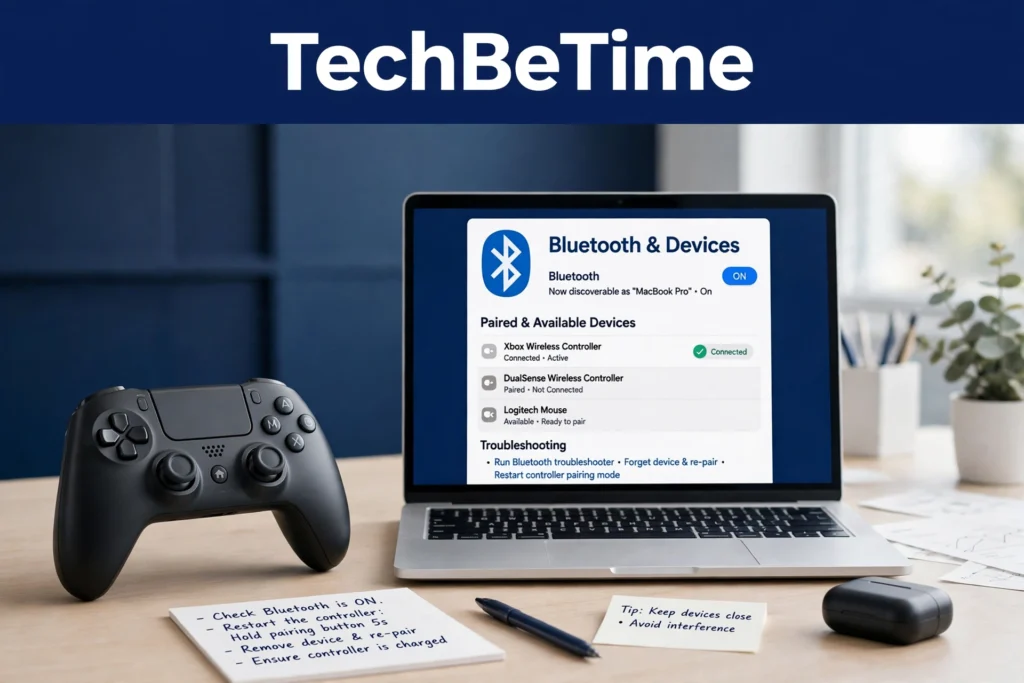
You press the Home button, the LED blinks, your phone says “connected” — and then nothing happens. Or worse, the controller works for ten minutes and drops out right in the middle of a ranked match. Connectivity issues with the HSS Gamepad are frustrating precisely because they rarely mean the controller is broken. In most cases, the problem is a wrong mode, a stale pairing, low battery, or interference from the Wi-Fi router sitting two feet away.
This guide walks through every common HSS Gamepad connection problem — Bluetooth pairing failures, random disconnects, input lag, games that ignore a connected controller, and USB errors — and the fixes that actually work on Windows PC, Android, iOS, and smart TV.
1. What Is the HSS Gamepad?
The HSS Gamepad is a budget multi-platform gaming controller designed for PC, Android, iOS, and smart TV gaming. Guides describe it as a compact controller with dual analog sticks, a D-pad, four action buttons, shoulder triggers, vibration feedback, and — on some models — Hall effect sticks that resist drift. It is widely used for mobile gaming, PC gaming, and emulator setups, where its low price (guides report around $25–$30) makes it a popular first controller.
One honest note before we start: the “HSS Gamepad” name is used across different models and versions, and features vary between them. Button combinations, pairing modes, and even the exact connection options can differ from one model to the next. Always check the manual that came with your specific controller before following any model-specific instruction in this guide. A few sources also use the “HSSGamepad” name for a controller-mapping software tool — this article covers the hardware controller, not that software.
2. The Three Ways to Connect: Bluetooth, 2.4GHz and USB
Most HSS Gamepad models connect in three ways, and choosing the right one solves half of all connectivity problems:
| Connection | Reported lag | Range | Best for |
|---|---|---|---|
| USB wired | Under 5 ms | Cable length | Competitive FPS games |
| 2.4GHz wireless (dongle) | 12–15 ms | Up to 8 metres | Everyday PC gaming |
| Bluetooth 5.0 | 15–20 ms | Up to 10 metres | Mobile, tablet, smart TV, casual play |
The quick rule is simple: use USB wired for competitive games, the 2.4GHz dongle for everyday PC gaming, and Bluetooth for phones, tablets, and TVs. Bluetooth is the most flexible option but also the most prone to lag and interference. The dongle sits in the middle — less interference than Bluetooth, more freedom than a cable. Guides report a 125 Hz polling rate on all three modes, meaning the controller sends data to your device 125 times per second.
If wireless is giving you trouble, plug the controller in with a USB cable first. If it works wired, the controller itself is fine, and the problem is in the wireless pairing, the drivers, or the signal — not the hardware.
3. Why Your HSS Gamepad Won’t Pair
A controller that never appears in the Bluetooth list is the most common complaint, and it usually has one of these causes:
- The controller is not actually in pairing mode. On most models, hold the Home button for 3–5 seconds until the LED blinks fast blue. A slow pulse or a solid light means it is on but not broadcasting. Some guides report a different combination — Home + Share together for about three seconds — so check your manual if the Home button alone does nothing.
- Low battery. Charge the controller for at least 30 minutes before pairing. A nearly dead battery often cannot sustain the Bluetooth radio long enough to complete pairing.
- Old pairing data. The controller remembers previously connected devices — one guide reports it can store up to eight. If that memory is full, or if it is still trying to reconnect to your PC while you are pairing it to your phone, it may never appear. Forget the controller in your device’s Bluetooth settings, and if your model has a pinhole reset button on the back (usually near the L2 button), press it with a paperclip for 3–5 seconds to clear the stored pairings.
- A stuck Bluetooth stack on the device. On Android, go to Settings → Apps → Bluetooth → Clear Cache, then restart the phone. On Windows, open Device Manager → Bluetooth, right-click the HSS Gamepad entry, choose Uninstall, then restart the PC and pair again.
Work through these in order, and test with a USB cable after each step — the moment the controller works wired, you know the hardware is fine.
4. How to Stop Random Disconnects
Random disconnections are the most reported problem with wireless controllers in general, and the HSS Gamepad is no exception. The causes are almost always the same:
- Low battery is the number one cause. Several guides warn that when the battery drops below about 30%, the Bluetooth transmitter no longer gets enough consistent power to hold the connection — even though the low-battery warning may not appear until 15%. Keep the charge above 40% before long sessions, and charge with a low-output charger (typically 5V/1A) to protect the battery.
- Wi-Fi interference. Bluetooth shares the crowded 2.4 GHz band with Wi-Fi routers, wireless mice, and even microwaves. Move at least 2–3 metres away from your router, or switch your router’s 2.4 GHz channel to 1 or 11. Keep the controller within about 3–4 metres (10–12 feet) of the device, with no large obstacles in between.
- USB 3.0 interference on PC. USB 3.0 ports can emit radio noise that disrupts Bluetooth dongles. If you use a dongle, plug it into a USB 2.0 port, or use a USB extension cable to move it away from the computer case.
- Battery saver and power management. Android’s battery saver can shut down the Bluetooth radio to save power — turn it off, or whitelist your game app. On Windows, open Device Manager → Bluetooth → your adapter → Properties → Power Management and uncheck “Allow the computer to turn off this device to save power.”
5. How to Fix Input Lag
A small delay between pressing a button and seeing the action on screen ruins fast games. Guides report wireless lag of roughly 4–20 ms depending on the connection type, which most players cannot feel — but when lag is noticeable, the fix is usually straightforward:
- Switch to a wired USB connection. This is the single biggest improvement, cutting lag to under 5 ms.
- If you must stay wireless, use the 2.4GHz dongle instead of Bluetooth. Guides report it shaves a few milliseconds off Bluetooth’s lag.
- Close background apps and reduce CPU load. One often-overlooked cause of input lag is CPU overload on the gaming device — if the processor is busy, controller input gets processed late no matter how good the connection is.
- Update your Bluetooth drivers from the manufacturer’s website, not from Windows Update. Several guides report that Windows Update drivers can add noticeable Bluetooth lag, and that the latest driver from the motherboard or laptop maker fixes it.
- Reduce interference using the same steps as in section 4 — distance, router channel, and fewer competing wireless devices.
6. Connected but Not Working in Games: The XInput/DInput Problem
This is the most confusing symptom of all: the controller pairs, Windows or Android says “Connected”, and the game ignores every button. In most cases, the controller is in the wrong input mode.
Many HSS Gamepad models support two modes:
- XInput (blue LED): the Xbox-style mode that most PC games and Steam expect.
- DInput (red LED): the older DirectInput mode used by some Android games and emulators.
If your game does not respond, press the mode button (often labelled X/D) to switch modes and try again. The LED colour tells you which mode is active. Also check that the game itself supports controllers — a controller being connected does not guarantee that every game will recognise it. If the game has a controller settings menu, open it and confirm the HSS Gamepad is selected as the active input device.
7. Wired Problems: USB Not Recognised and Driver Errors
Wired connections fail less often, but when they do, the symptoms are very specific:
- “USB device not recognized” or error Code 43 in Device Manager. Try a different USB cable first — many bundled cables are charge-only and carry no data. Then try a rear motherboard USB port rather than a front-panel port or a hub, which delivers more stable power.
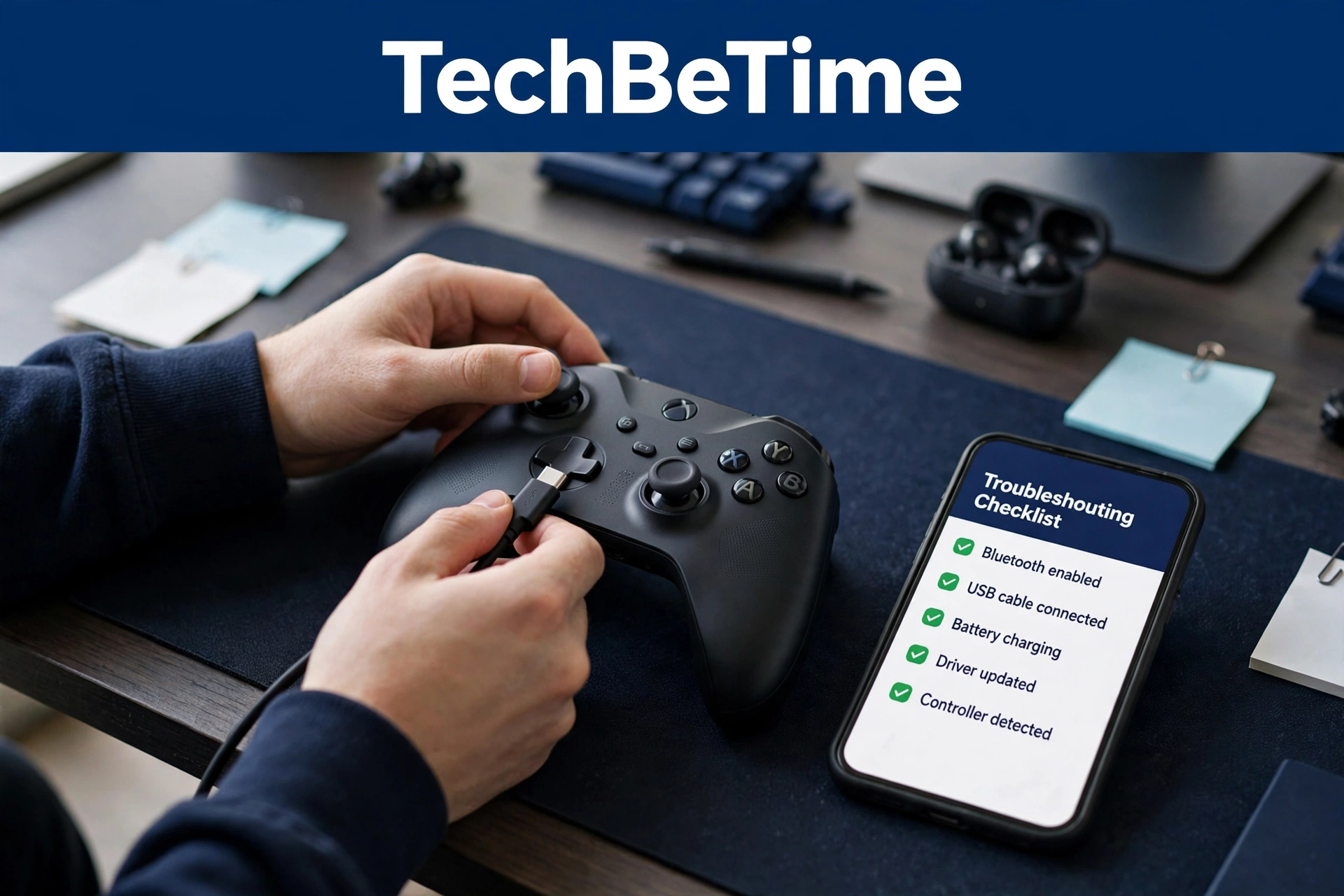
- A yellow warning icon in Device Manager. Right-click the device, choose Update driver, and if that fails, Uninstall device and restart the PC so Windows reinstalls it. Most HSS Gamepad models use native Windows HID drivers and need no custom software.
- The controller charges but never appears as a gamepad. This usually means the cable is charge-only, or the controller is in a Bluetooth-only mode. Swap the cable, and try the pairing button combination from your manual.
Do not download drivers or firmware from random websites. If your model supports firmware updates, get them only from the manufacturer’s official support page. One third-party guide mentions a driver download site, but it could not be verified — so no download link is included in this article.
8. Platform Fixes: PC, Android, iOS and Smart TV
On Windows 11: hold Home until the LED blinks fast blue, go to Settings → Bluetooth & devices → Add device → Bluetooth, and select HSSGamepad. Wait for “Connected” — the LED should settle to a steady blue. If a game does not detect it, switch to XInput mode.
On Android: hold Home until the LED blinks fast blue, go to Settings → Connected devices → Pair new device, and tap HSSGamepad. If games still do not detect it, press the X/D button to switch input mode. Turn off battery saver, which can kill power to connected devices.
On Android TV: go to Settings → Remote & Accessories → Add accessory, and put the controller in pairing mode before opening the Bluetooth menu. Android TV requires Android 8.0 or later.
On iPad and iPhone (iOS 18+): pair from Settings → Bluetooth in the usual way. Remember the controller connects to whichever device it paired with last — if it was last used on a PC, forget it there first or it may keep reconnecting to the PC instead of the iPad.
On smart TVs: Samsung and LG TVs may not support Bluetooth gamepads at all — use the USB wired connection instead.
9. When It’s Time to Replace the Controller
Most connectivity issues are fixable, but a few signs point to real hardware failure:
- The controller will not turn on or charge even with a known-good cable and charger.
- The LED never lights up, or the reset pinhole changes nothing.
- It disconnects within seconds on every device and every connection type, wired included.
- Buttons or sticks register phantom inputs even after a reset.
If you have worked through every fix in this guide and the controller still fails on all three connection types, the radio or the battery has likely failed. At the reported $25–$30 price point, a replacement is usually cheaper than a repair — and if the controller is still under warranty, contact the seller first.
Final thoughts
Connectivity issues with the HSS Gamepad are almost never a dead controller. They are usually a wrong mode, a stale pairing, a low battery, or interference from the router sitting next to your desk — and each of those has a fix that takes minutes, not money. Start with the cable test: if the controller works wired, the hardware is fine and the answer is in the pairing, the drivers, or the signal. Keep the battery above 40%, use XInput mode for PC games, and switch to wired USB when every millisecond counts.
One last reminder: model details vary, so treat any single guide — including this one — as a starting point, and check the manual for your exact model before pressing reset buttons or installing firmware. With the right mode and a clean pairing, the HSS Gamepad is a capable budget controller that should stay connected for the whole session.
FAQ
Why won’t my HSS Gamepad pair with Bluetooth?
The most common reasons are low battery, the controller not being in pairing mode, or old pairing data. Charge it for at least 30 minutes, hold the Home button for 3–5 seconds until the LED blinks fast blue, forget the controller in your device’s Bluetooth settings, and pair again from scratch.
Why does my HSS Gamepad keep disconnecting during games?
Low battery is the leading cause — the Bluetooth radio loses power below about 30% charge. Wi-Fi interference on the 2.4 GHz band, battery saver mode on Android, and Windows power management turning off the Bluetooth adapter are the other usual culprits.
How do I fix input lag on my HSS Gamepad?
Switch to a wired USB connection for the lowest lag (under 5 ms). If you stay wireless, use the 2.4GHz dongle instead of Bluetooth, close background apps to reduce CPU load, and update your Bluetooth drivers from your device manufacturer’s website.
My HSS Gamepad is connected but the game doesn’t respond. What should I do?
Switch the input mode — press the X/D button to change between XInput (blue LED, for most PC games and Steam) and DInput (red LED, for older Android games and emulators). Also check that the game actually supports controllers and that the HSS Gamepad is selected in the game’s controller settings.
Does the HSS Gamepad work on PC, Android, iOS and smart TV?
Yes, depending on the model. It connects via Bluetooth 5.0, a 2.4GHz wireless dongle, or USB cable to Windows PC, Android phones and Android TV, iPad and iPhone, and some smart TVs. Samsung and LG TVs may not support Bluetooth gamepads, so use USB wired there instead.