Nokia 2.3 Apps: Complete Guide to Download, Install, Manage & Fix App Issues (2026)
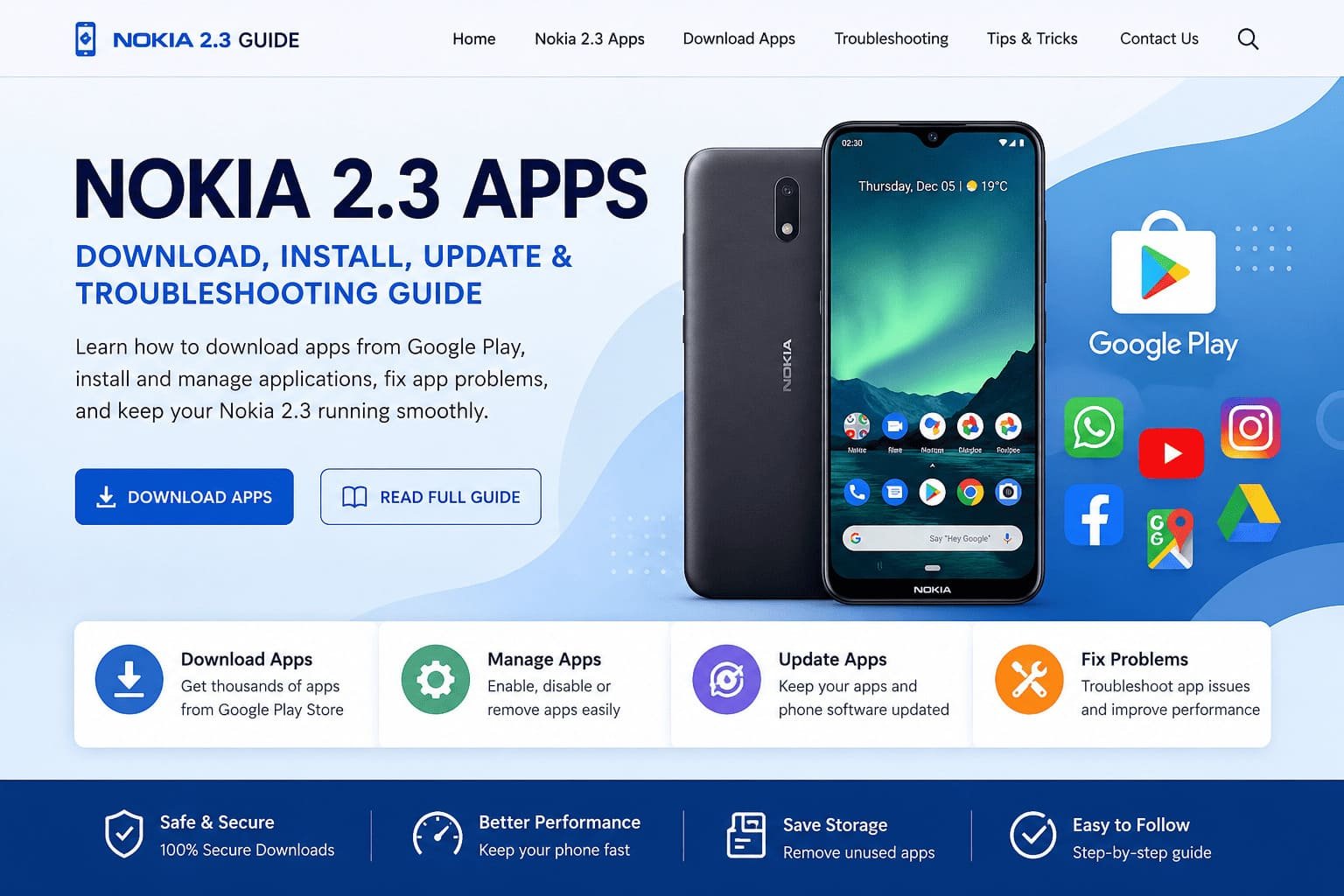
The Nokia 2.3 remains a reliable Android smartphone for users who want a simple, clean, and secure mobile experience. One of its biggest strengths is access to millions of Android apps through the Google Play Store. Whether you want social media apps, productivity tools, games, streaming services, or educational apps, your Nokia 2.3 can handle them with ease.
In this complete guide, you’ll learn everything about Nokia 2.3 Apps. Including how to download apps, update them and enable or disable built-in apps, fix apps that stop responding, and keep your phone running smoothly.
Whether you’re a new Nokia user or simply need help managing your apps. This guide explains every step in easy-to-understand language.
What Are Nokia 2.3 Apps?
Nokia 2.3 apps are Android applications that run on the Nokia 2.3 smartphone. Since the phone uses Android, you can download apps from the Google Play Store or Google’s official app marketplace.
Apps allow you to customize your phone according to your needs Instead of using your phone only for calls and messages, you can install applications for:
- Social networking
- Video streaming
- Music
- Online banking
- Shopping
- Learning
- Navigation
- Photography
- Health tracking
- Office work
- Gaming
With thousands of free and paid apps available, the Nokia 2.3 becomes much more useful for everyday life.
Why Use Google Play Store on Nokia 2.3?
Google Play Store is the safest and easiest place to download Android apps.
Benefits include:
- Millions of trusted apps
- Automatic app updates
- Secure downloads
- User reviews and ratings
- Easy installation
- Fast search
- Purchase history
- Family sharing options
Using the Play Store also helps protect your device because apps are regularly checked for security.
Add a Google Account Before Downloading Apps
Before downloading apps, you need a Google account.
Steps
- Open Settings.
- Tap Accounts.
- Select Add Account.
- Choose Google.
- Enter your Gmail email address.
- Tap Next.
- Enter your password.
- Follow the setup instructions.
If you don’t already have a Gmail account, choose Create Account and complete the registration.
Once your account is added, you’re ready to download apps.
How to Download Apps on Nokia 2.3
Installing apps is simple.
Step 1
Open the Play Store.
Step 2
Tap the search bar.
Step 3
Type the name of the app.
For example:
- Spotify
- Angry Birds
- See here how to download
Step 4
Select the correct app from the results.
Step 5
Tap Install.
The app downloads automatically.
Step 6
Once installation finishes, tap Open.
The app is now ready to use.
Browse Apps in Google Play
If you don’t know what app you want, browse the available categories.
Popular sections include:
- Apps
- Games
- Books
- Movies
- Top Charts
- Trending
- Editor’s Choice
- Top Free
- Top Paid
- Top Grossing
Browsing these categories helps you discover useful new applications.
Search for Apps
Instead of browsing, you can search directly.
Simply:
- Open Play Store
- Tap Search for apps & games
- Type the app name
- Choose the correct result
- Tap Install
This is the fastest method when you already know the application you need.
Installing Free and Paid Apps
Most apps are free.
For free apps:
- Tap Install
For paid apps:
- Tap the price
- Choose a payment method
- Confirm your purchase
After payment, the app downloads automatically.
Open Installed Apps
Once an app is installed, you have two options.
Option 1
Tap Open immediately after installation.
Option 2
Return to the Home Screen.
Swipe up from the bottom to open the app drawer.
Find your installed application and tap it.
How to Uninstall Apps on Nokia 2.3
If you no longer use an app, uninstall it to free storage.
Method 1
Open Play Store.
Search for the app.
Tap Uninstall.
Method 2
Go to:
Settings → Apps → Select App → Uninstall
Removing unused apps improves storage and performance.
Enable Disabled Apps on Nokia 2.3
Sometimes built-in apps are disabled accidentally.
To enable them again:
- Open Settings.
- Tap Apps.
- Select See All Apps.
- Choose the disabled application.
- Tap Enable.
The app will appear in the app drawer again.
Disable Built-In Apps
Some pre-installed apps cannot be removed completely.
Instead, you can disable them.
Steps:
- Open Settings
- Tap Apps
- Select the app
- Tap Disable
Disabling prevents the app from running in the background.
This helps save battery and system resources.
Keep Nokia 2.3 Apps Updated
Updating apps brings:
- New features
- Better security
- Bug fixes
- Faster performance
- Improved compatibility
Update Individual Apps
Open Play Store.
Search for the app.
Tap Update.
Update All Apps
Open Play Store.
Tap your profile picture.
Choose Manage apps & device.
Tap Update All.
Keeping apps updated reduces crashes and improves stability.
Update Nokia 2.3 Software
Besides updating apps, updating Android itself is equally important.
To check for updates:
- Open Settings
- Tap System
- Tap Advanced
- Select System Update
- Tap Check for Update
If an update is available:
- Connect to Wi-Fi
- Charge your phone
- Download the update
- Restart your phone
Software updates improve both security and performance.
Best Apps for Nokia 2.3
Although the Nokia 2.3 is an entry-level smartphone, it supports many useful Android apps.
Popular choices include:
Communication
- Telegram
- Messenger
Social Media
- X (Twitter)
Entertainment
- YouTube
- Spotify
- Netflix
Productivity
- Google Docs
- Google Drive
- Microsoft Office
Navigation
- Google Maps
Security
- Google Files
- Google Find My Device
Choose lightweight apps whenever possible for smoother performance.
Nokia 2.3 Apps Not Responding? Here’s How to Fix It
Sometimes apps freeze or stop working.
Fortunately, most issues are easy to fix.
Clear App Cache
Go to:
Settings → Apps → Select App → Storage → Clear Cache
This removes temporary files without deleting personal data.
Clear App Data
If clearing cache doesn’t help:
Choose Clear Storage or Clear Data.
This resets the app to its default state.
You may need to sign in again afterward.
Restart Your Phone
A simple restart often fixes temporary software glitches.
Hold the power button.
Tap Restart.
Wait for the phone to reboot.
Update the App
Older app versions may not work correctly.
Visit Play Store.
Check if an update is available.
Install it.
Remove Conflicting Apps
Some browsers or utility apps may conflict with each other.
If you recently installed a browser or optimization app before problems started uninstall it and check whether the issue is resolved.
Free Up Storage
Low storage causes apps to crash.
Delete:
- Old photos
- Videos
- Downloads
- Unused apps
Try to keep at least 2–3 GB of free storage for smoother performance.
Factory Reset (Last Option)
If nothing works
- Back up your data.
- Go to Settings → System → Reset Options.
- Choose Erase All Data (Factory Reset).
- Follow the on-screen instructions.
This restores your phone to its original settings and often resolves persistent software problems.
Tips to Keep Nokia 2.3 Running Smoothly
Follow these simple habits to improve app performance:
- Update apps regularly.
- Install apps only from the Google Play Store.
- Remove apps you no longer use.
- Restart your phone occasionally.
- Keep enough free storage.
- Avoid running many heavy apps at the same time.
- Clear app cache periodically.
- Install Android system updates when available.
These practices help your Nokia 2.3 stay responsive and reliable.
Frequently Asked Questions
Can I install apps on Nokia 2.3?
Yes. The Nokia 2.3 supports millions of Android apps through the Google Play Store.
Is Google Play Store already installed?
Yes. Most Nokia 2.3 devices come with Google Play Store pre-installed.
Why won’t my apps open?
Common reasons include outdated software, low storage, corrupted cache, or app bugs. Clearing the cache, updating the app, or restarting the phone usually fixes the issue.
Can I disable built-in apps?
Yes. Many pre-installed apps can be disabled from Settings > Apps if you don’t use them.
How do I update my apps?
Open the Play Store, tap your profile icon, go to Manage apps & device, and choose Update All or update apps individually.
Final Thoughts
The Nokia 2.3 may be a budget-friendly smartphone, but it offers a complete Android app experience through the Google Play Store. With access to millions of apps, you can personalize your phone for communication, entertainment, work, education, and everyday tasks.
By learning how to install, update, enable, disable, and troubleshoot apps, you can keep your Nokia 2.3 running efficiently for years. Regular software updates careful app management and simple maintenance such as clearing cache and freeing storage—will help ensure a smooth and enjoyable user experience. Whether you’re downloading your first app or fixing one that won’t respond. These best practices will help you get the most out of your Nokia 2.3.